Import Viseca DE into bexio accounting automatically
Download PayPal as CSV
| Follow these Steps | Here |
|---|---|
| - Log in to your Viseca One account and - Click on «Invoices - Click on the dropdown menu on the right hand side of each card | 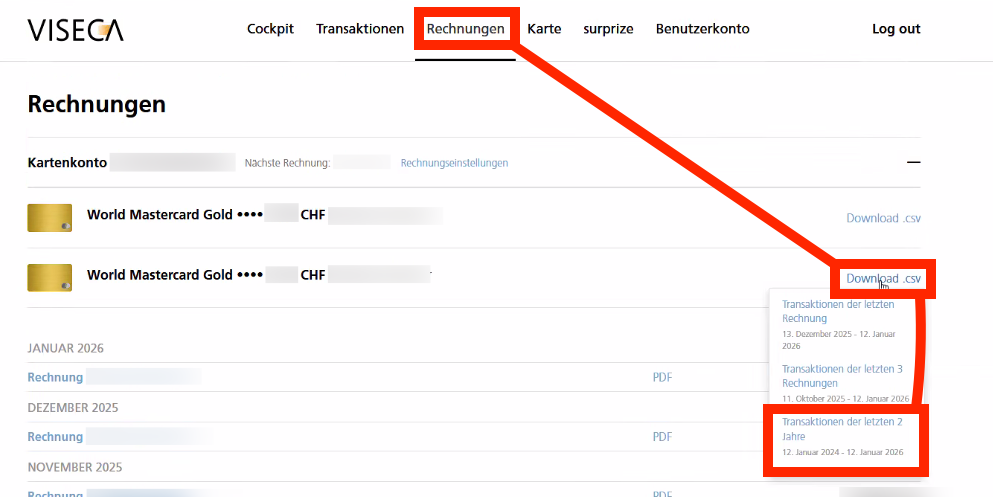 |
Your csv file from Viseca
Let's assume the CSV/Excel file you want to import into bexio has the following structure:

1. Setup a new import channel
Follow the quick start guide to set up the import channel.
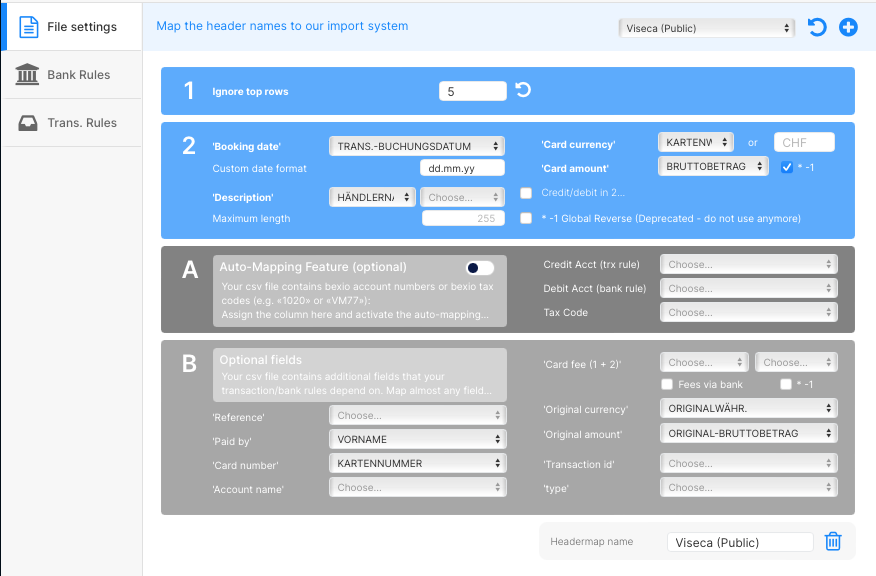
During the setup process you will be asked to select a header template. Use the following template:
- Viseca (public).
Then click on Load (Refresh button).
astuce
If your file has different column names or you use a different credit card issuer, don't worry. You can either create your custom header template or ask us to do it for you:
a) Create a new template
- Click on the plus sign while no header template is selected.
- If a header template is selected: Change it back to empty and click on Load. Then click on the plus sign.
- more infos
b) Duplicate an existing template
- Select the header template, click on load (refresh button) and then on the plus button. This will create a copy of this template.
- more infos
c) Ask us for help
- or make a request for the free setup service
- or ask us for additional help
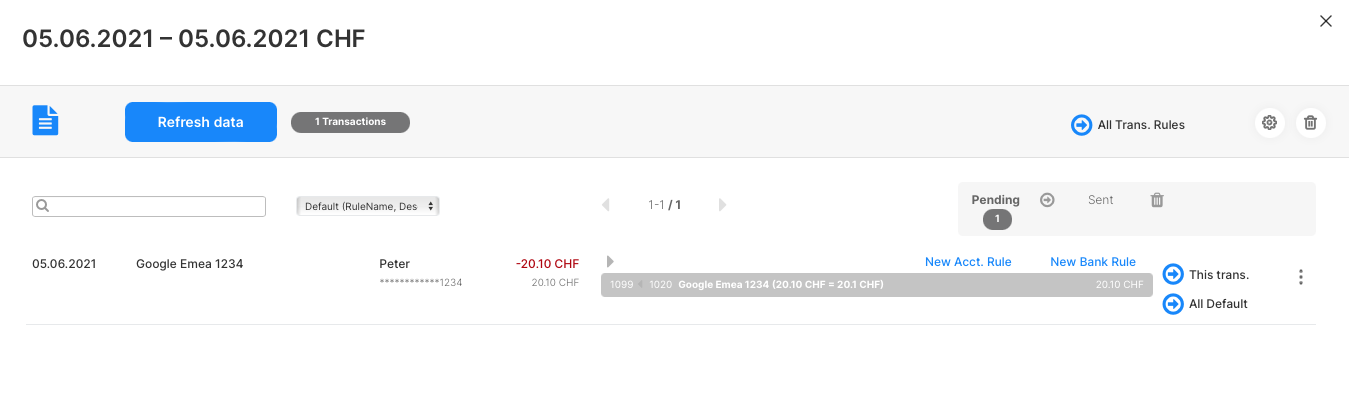
Result
2. Process your first file
After setting up the import channel, follow this guide to process your first file.