Quick setup
How to create a new import channel quickly with the minimal required setup.
1. Create a new import channel
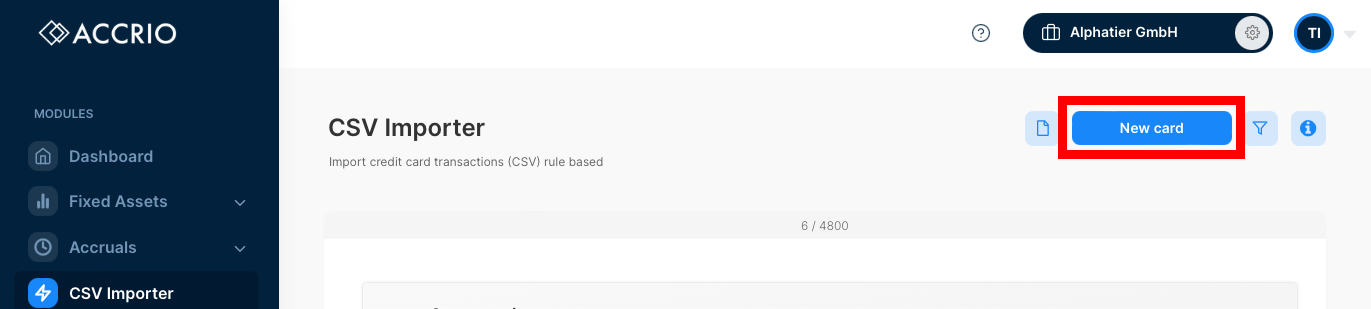
Click on New Card to create a new import channel.
2. Upload your first file
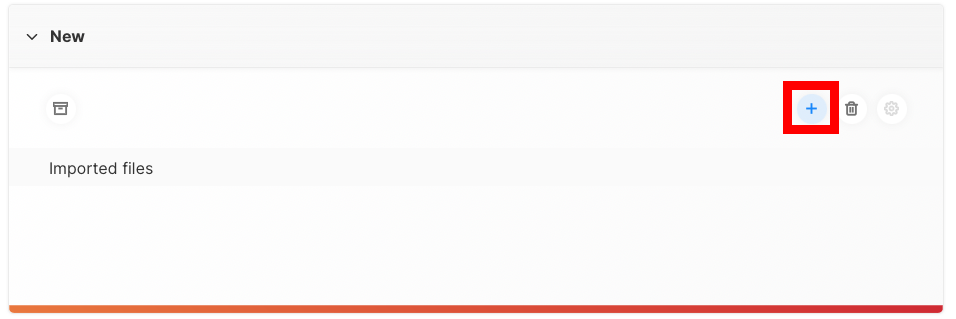
A new import channel has been created. To set it up, click on the plus sign to add your first file.
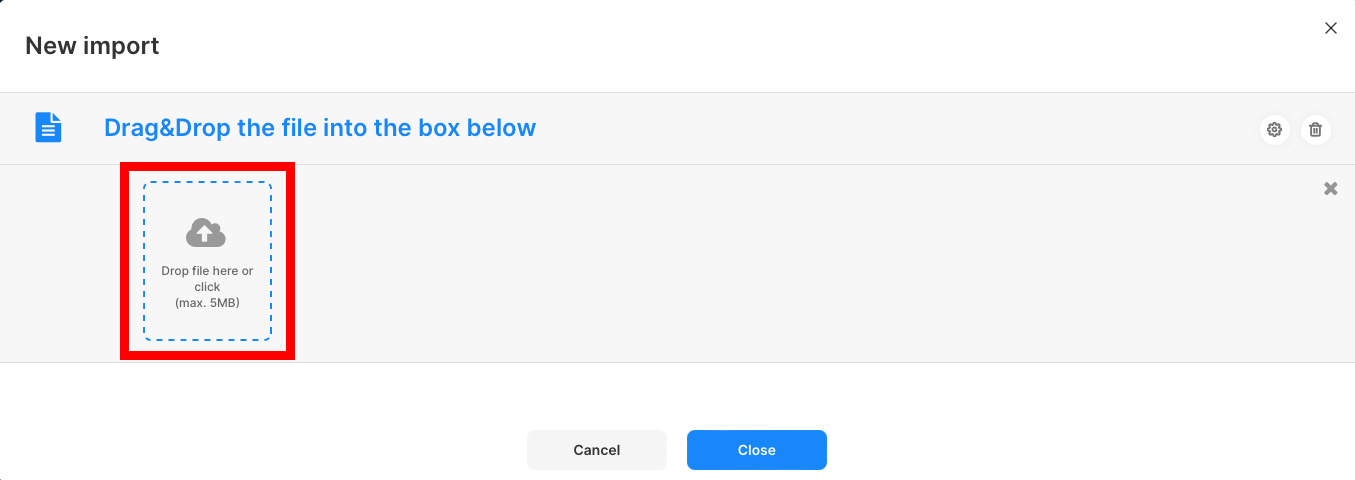
And then drag and drop your file into the drop area. This file will be used to set up the import channel. You can change the file later on.
We highly recommend not to open the csv file in Excel. This can lead to issues with the encoding. If you want to view the data in Excel, duplicate the file and open the duplicate.
3. Set up the import channel
Set the red marked fields as follows:
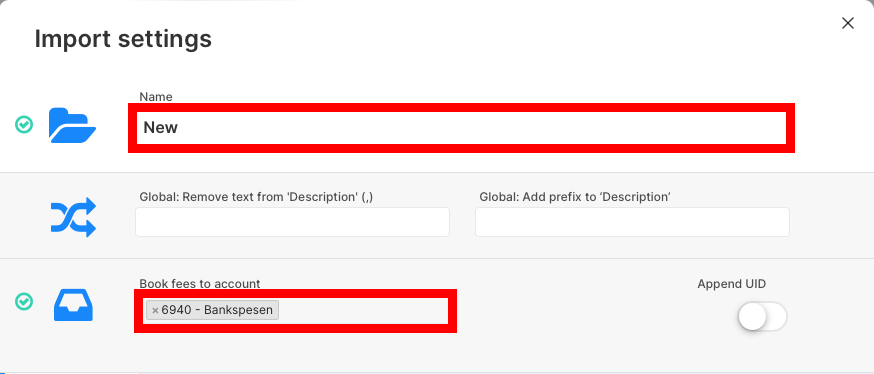
Name required
Name of the import channel (E.g. «Revolut» or «Wise»). Can be chosen freely.
Book fees to account required
Set the account where the fees should be booked to. In bexio this is usually the expense account «6940 bank fees».
➡️ This has to be set even if you won't use the fee feature.
This account has to be an expense account. Do not use a bank account in this field.
This will lead to issues later on.
For more information about the other fields, please refer to the full documentation.
4. File settings
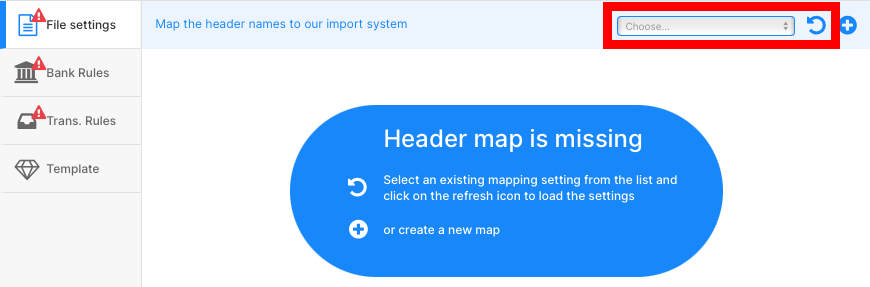
Now scroll down to the file settings. Here you can specify which column of your csv file should be mapped to which field in accrio. You can do that either
With an existing template
- We've prepared templates for many common credit card / payment providers
e.g. Revolut, Wise, Stripe, Twint, Swisscard AECS, Cornercard, Viseca DE, Paypal DE, etc.see all templates. - We can also create a curtom template for you (see setup service) for more informantion. If a template is available, select it in the dropdown menu (e.g.
Cornercard (public)) and click on Load (Refresh button).
Without an existing template
If you don't use one of the above mentioned banks, you have to
- create a header map from scratch
- or make a request for the free setup service
- or ask us for additional help
To create a header map from scratch, follow this guide
For more information about the other fields, please refer to the full documentation.
5. Bank rules
Concept — 1 bank rule per bank account and currency
We highly recommend to create a separate bank account in bexio for each account which displays its own balance:
- each bank account
- each credit card account (and currency)
- each neo-bank currency account
This will allow you to reconcile the transactions at the end of the month/year very easily:
- 1020 Traditional Swiss Bank Account -> balance should match your bank statement
- 1030 Revolut CHF -> balance should match your CHF statement
- 1031 Revolut EUR -> balance should match your EUR statement
- 1032 Revolut USD -> balance should match your USD statement
- 1080 Stripe Transfer Account -> balance should match your stripe balance
- 1081 Twint Transfer Account -> balance should match your twint balance
- 1082 PayPal CHF Transfer Account -> balance should match your paypal CHF balance
- 1083 PayPal EUR Transfer Account -> balance should match your paypal EUR balance
- 2080 Viseca Credit Card CHF -> balance should match your monthly viseca bill
Single Currency Setup (Default rule)
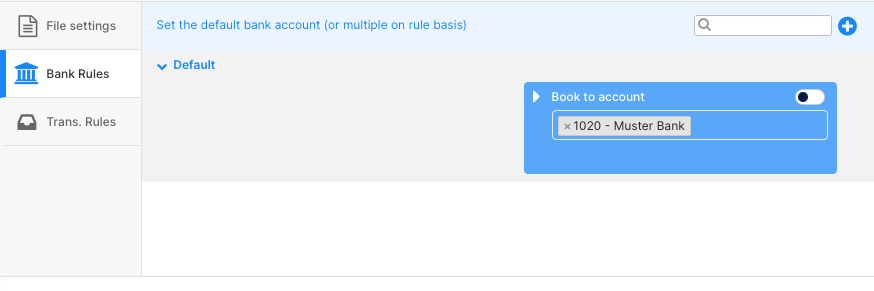
The default rule works as a fallback, if no other rule applies. In most cases all transactions of your file have to be booked on the same bexio account, therefore it will be sufficent to just set the bank account of the default rule.
➡️ Click on Default and select the bank/card account you want your transactions to be booked to. This should be not be a regular bank account (e.g. not Account 1020) E.g. 1080 Cornercard CHF
Multiple currencies
Many neo-banks allow you to keep money in multiple currencies (e.g. CHF, EUR and USD). Accrio can automatically map a each account currency to a different bexio account (recommended way of setting things up because it will make the reconciliation much easier). How to set this up, please refer to the full documentation.
6. Transaction rules
Default rule
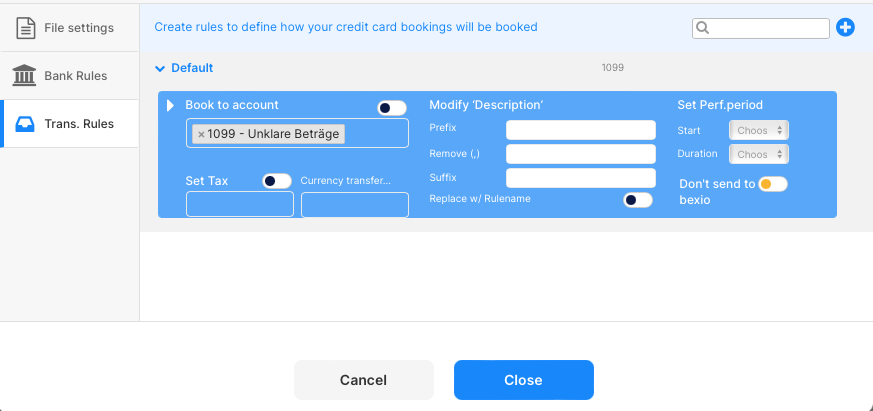
The default rule works as a fallback, if no other rule applies.
➡️ We recommend to set it to 1099 bookings to validate
This account has to be an expense account. Do not use a bank account in this field.
This will lead to issues later on.
For more information about the other fields, please refer to the full documentation.
7. Save the import channel
Scroll down and click on Save to save the import channel. Now you should see a list of transactions or get an error message specifying the reason what isn't setup correctly. If you have any issues or questions please contact us. We're always happy to help.
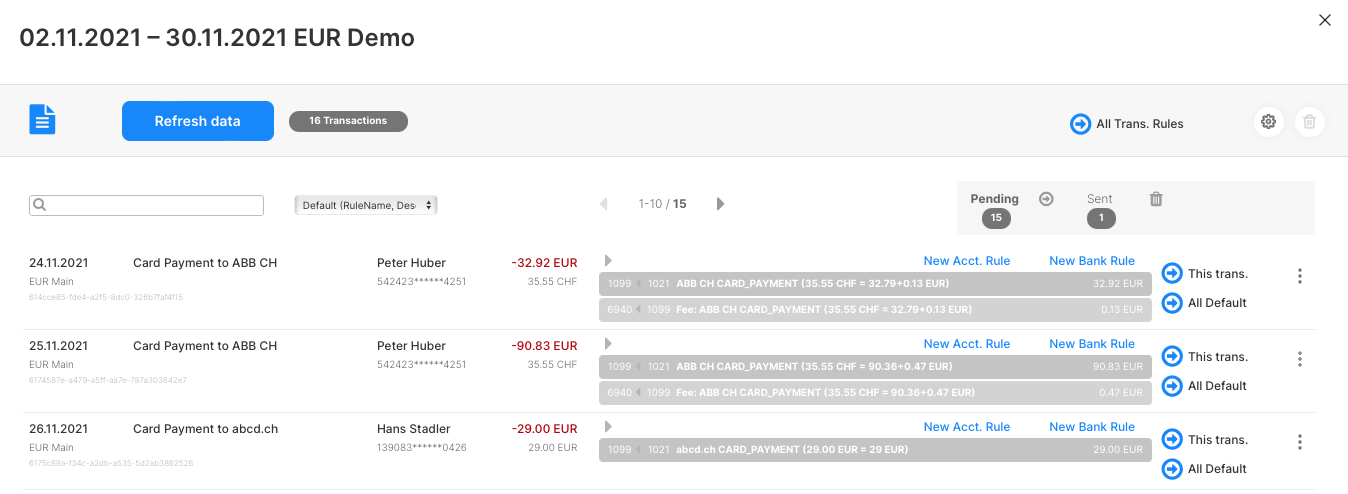
Make sure that the transaction have the right colour:
- Debit transactions (you pay something with credit card) should be red be
- Credits transactions (someone transfers money to your card account) should be green
8. Import the transactions
Follow the «How to use» tutorial to import the transactions into bexio.