Transaction rules
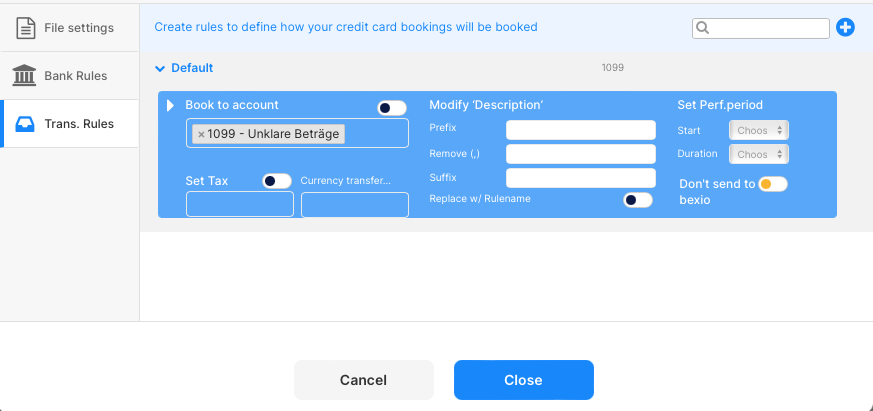
Default rule required
The default rule works as a fallback, if no other rule applies.
➡️ We recommend to set it to 1099 bookings to validate
Transaction rules optional
Add a new rule
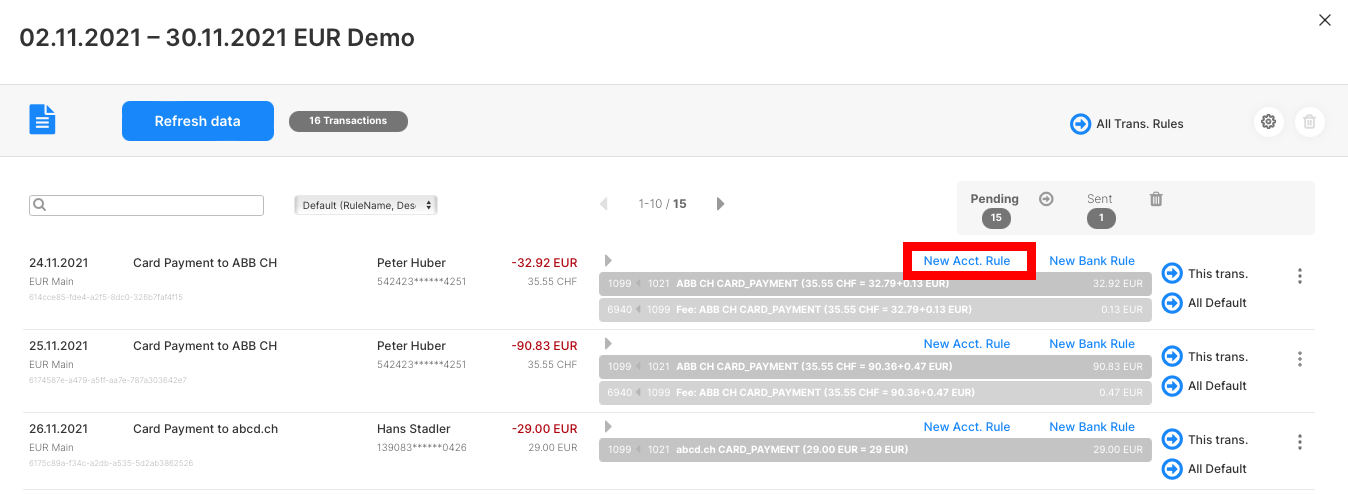
If you're viewing the transaction list, click on New Acct. rule to add a new rule.
Alternatively you can click on the blue plus sign in the import channel settings > Transaction rules section.
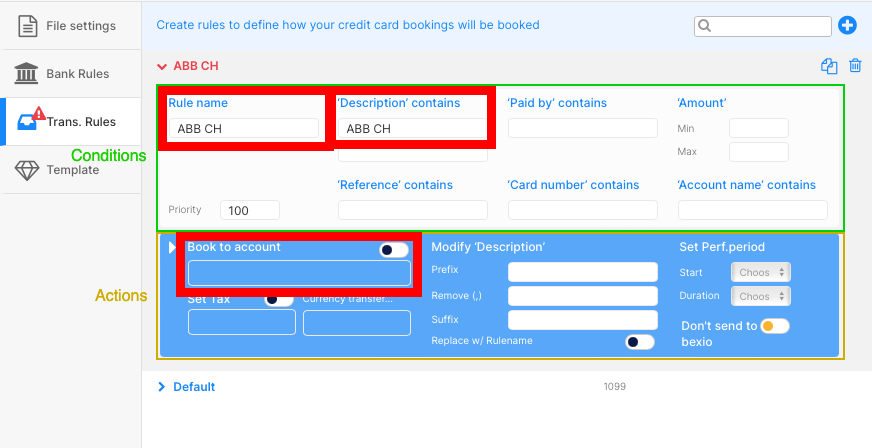
This will open a new window where you can define the rule:
Minimum requirements
In most cases you will use the following 3-4 fields:
rule name required
Give the rule a name. This is only for your reference and will not be used in the import process. We recommend it to name it after the most dominant conditions.
at least one condition required
e.g. description contains
This would mean, that if the transaction's description contains the word ABB CH, the rule will apply.
- It is best to use the shortest possible character string that allows a transaction to be uniquely identified. In this case
ABBmight be sufficient and would be more robust for future changes - e.g. if the transaction's description changes toABB Switzerland AGin the future, the conditionABBwould still apply, while theABB CHwouldn't match anymore. - But be careful: the condition
ABBwould also a match a transaction namedcabbage.com. In this case, it might be wiser to useABB CHas the condition or to increase the priority of the rulecabbage.comto make sure that this rule will get applied first.
book to account required
Set the bexio bank account number (usually an expense account) where the transaction should be booked to.
tax code optional
Please only set a taxcode if you're company is subject to VAT. Otherwise leave it empty.
Fields explained
Conditions optional
Description contains 1 optional
This would mean, that if the transaction's description contains the word ABB CH, the rule will apply.
- It is best to use the shortest possible character string that allows a transaction to be uniquely identified. In this case
ABBmight be sufficient and would be more robust for future changes - e.g. if the transaction's description changes toABB Switzerland AGin the future, the conditionABBwould still apply, while theABB CHwouldn't match anymore. - But be careful: the condition
ABBwould also a match a transaction namedcabbage.com. In this case, it might be wiser to useABB CHas the condition or to increase the priority of the rulecabbage.comto make sure that this rule will get applied first.
Description contains 2 optional
This will work like the first description field. The second field will allow you to search for two words in the description. E.g. you can search for ABB and Zurich in the description. Now the rule only applies if both words are found in the description.
Paid by contains optional
Functionality is the same as for the description fields.
Reference contains optional
Functionality is the same as for the description fields.
Card numder contains optional
Functionality is the same as for the description fields.
Account name contains optional
Functionality is the same as for the description fields.
Amount min optional
If set, the rule will only apply if the amount of the transaction is equal or higher than the specified amount. The sign of the amount is ignored. Therefore the rule will apply for positive and negative amounts:
E.g. if you set the amount to 100:
- the rule will apply if
- the amount is
100or higher - or the amount is
-100or lower.
- the amount is
- the rule won't apply if the amount is between
-99.9999and99.9999
Amount max optional
If set, the rule will only apply if the amount of the transaction is equal or lower than the specified amount. The sign of the amount is ignored. Therefore the rule will apply for positive and negative amounts:
E.g. if you set the amount to 100:
- the rule will apply if the amount is between
-99.9999and99.9999 - the rule won't apply if
- the amount is
100or higher - or the amount is
-100or lower.
- the amount is
Priority required
If you have multiple rules that apply to the same transaction, the rule with the highest priority will be used.
Actions required
book to account required
Set the bexio bank account number (usually an expense account) where the transaction should be booked to.
automapping-feature
optionalPlease refer to this tutorial.
Set tax code optional
Please only set a taxcode if you're company is subject to VAT. Otherwise leave it empty.
automapping-feature
optionalPlease refer to this tutorial.
currency transfer account optional
Please refer to this tutorial.
Modify description optional
These fields allow to modify the description text that will be sent to bexio.
Prefix
optional
Add additional text at the beginning of the description. If set to TextBefore, the description OriginalDescription will be changed to TextBefore OriginalDescription.
Remove (,)
optional
If you want to remove a text from the description, enter it here. Multiple texts can be entered by separating them with a comma: text1,text2,text3 will remove text1, text2 and text3 from the description.
Suffix
optional
Add additional text at the end of the description. If the field is set to TextAfter, the description OriginalDescription will be changed to OriginalDescription TextAfter.
Replace with rulename
optional
This will replace the description with the name of the rule.
Set Performance period optional
Allows you to specify what the performance period of the transaction is. This will append a note (e.g. [03.2021-02.2022]) to the description of the transaction which will be compatible with our module accruals
Start
required if duration is set
The number specified here, defines the start of the performance period in months relative to the date of the transaction:
- If the transaction date is
15.02.2021andstartis set to-1, the performance period will start on01.2021. - If the transaction date is
15.02.2021andstartis set to0, the performance period will start on02.2021. - If the transaction date is
15.02.2021andstartis set to1, the performance period will start on03.2021.
Duration
required if start is set
The number specified here, defines the how many months the duration of the performance period is. This will automatically calculate the end date of the transaction.
- If the transaction date is
15.02.2021andstartis set to1, the performance period will end on02.2021(1 month). - If the transaction date is
15.02.2021andstartis set to3, the performance period will end on04.2021(3 months). - If the transaction date is
15.02.2021andstartis set to12, the performance period will end on01.2022(12 months).
Don't send to bexio optional
If checked, transactions with this rule will be set to ignored when clicked on send instead of sending it to bexio. Ignored transactions will be displayed in the ignored transactions list.